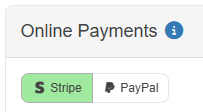
SimulArt lets you accept, process, and manage online payments through either Stripe or PayPal. In SimulArt settings you can switch between the two providers using the Stripe / PayPal toggle, then enter the credentials for the provider you have chosen. Only the selected provider is used at checkout.
Stripe
With Stripe selected in the toggle, start accepting online payments by pasting your Stripe Secret API key and specifying a currency code in SimulArt settings.
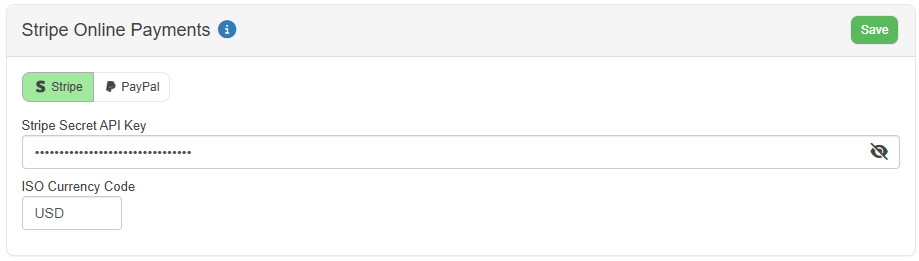
To get your Stripe API keys, follow these steps:
- Log in to Stripe: Go to Stripe's website and log in to your account.
- Access the Dashboard: Navigate to the dashboard.
- Open the Developers Section: On the left menu, click on Developers > API Keys.
- View API Keys: Here, you’ll see your Publishable key and Secret key. The Secret key must be kept confidential.
- Test and Live Keys: Make sure you’re using the correct keys. Use Test keys for development and Live keys for production.
Always secure your Secret key to prevent unauthorized access.
PayPal
With PayPal selected in the toggle, you start accepting payments by entering your PayPal Client ID and Secret key, choosing the environment (Sandbox or Live), and specifying a currency code in SimulArt settings. Unlike Stripe, PayPal uses two values together – a Client ID and a Secret – rather than a single key.
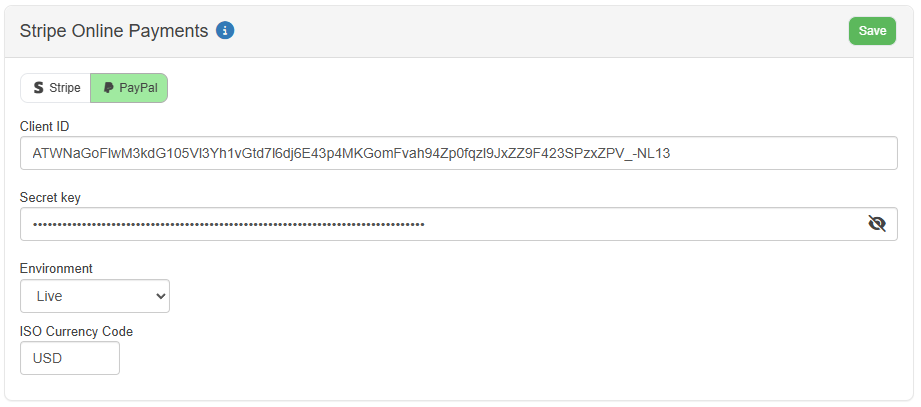
To get your PayPal API credentials, follow these steps:
- Log in to PayPal Developer: Go to the PayPal Developer Dashboard and log in with your PayPal business account.
- Open Apps & Credentials: From the menu, click Apps & Credentials.
- Choose Sandbox or Live: Use the Sandbox tab while testing and the Live tab for real payments. The credentials are different for each, so make sure they match the environment you select in SimulArt.
- Create an app: Click Create App, give it a name (for example, “SimulArt”), and create it. If you already have an app, simply open it.
- Copy your credentials: On the app page you’ll see your Client ID and, after clicking to reveal it, your Secret. Paste both into the matching fields in SimulArt settings.
- Set the environment and currency: In SimulArt, choose Sandbox or Live to match the credentials you copied, then enter your currency code.
Always keep your Secret confidential to prevent unauthorized access. Test in Sandbox first, and only switch to Live once you have confirmed a test payment works end to end.
ISO currency codes are used to specify which currency must be used for payments (for both Stripe and PayPal), here are a few examples:
- USD – United States Dollar
- EUR – Euro (used by many European Union countries)
- CAD – Canadian Dollar
- GBP – British Pound Sterling
- AUD – Australian Dollar
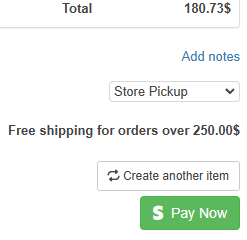
Once valid credentials are entered for your selected provider, a "Pay Now" button is displayed at the bottom of customer's shopping carts and on orders that still have a balance.
Was this article helpful?
That’s Great!
Thank you for your feedback
Sorry! We couldn't be helpful
Thank you for your feedback
Feedback sent
We appreciate your effort and will try to fix the article